
Before you start using your primasello cash register, please read the quick start guide provided carefully. Alternatively, you can also find all the important information in the Getting Started chapter.
Scope of delivery
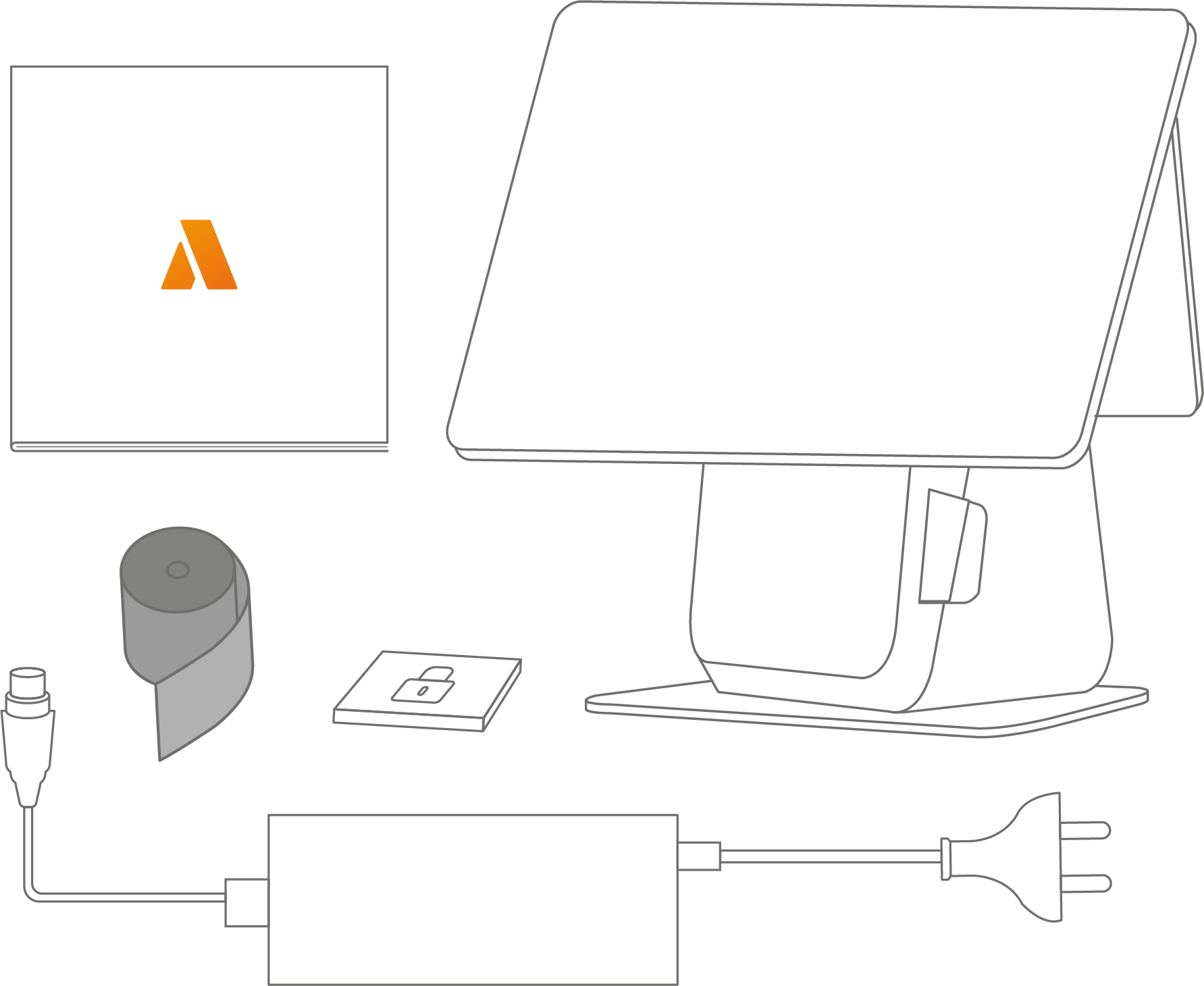
The package includes:
-
1x primasello X370 PRO cash register
-
1x quick start guide
-
1x power supply unit with power cable
-
1x 80mm thermal paper for printer
-
1x security module
Screen components
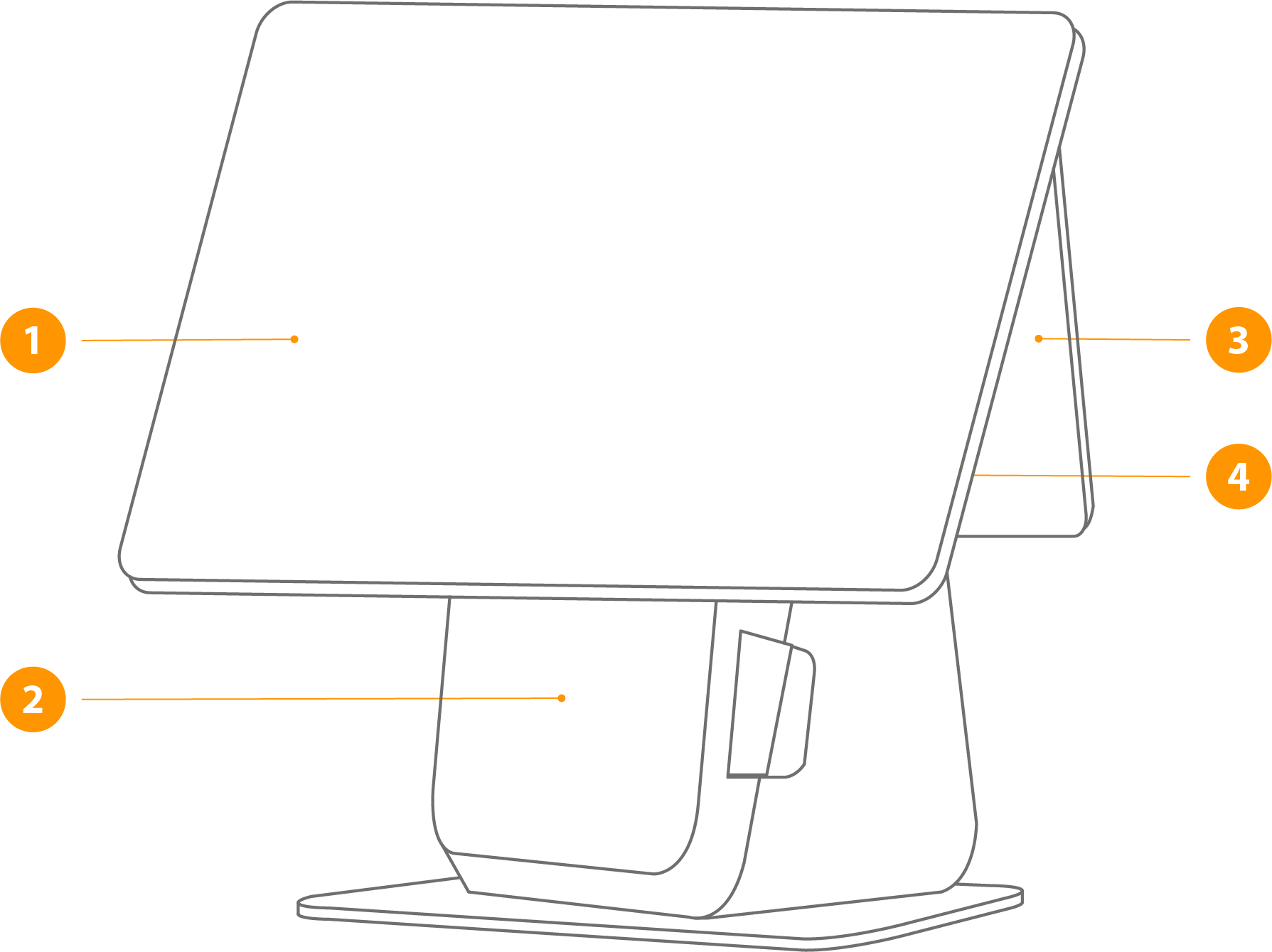
1 - Main screen
Touch screen for operation.
2 - Printer cover
Open to access the paper roll.
3 - Costumer screen
Screen for customers with information about the open receipt.
4 - On/off button
If the device is switched off, press briefly to start it up. Press and hold the power button for 2-3 seconds to choose between ‘Shut down’ or ‘Restart’. To force the device to switch off, press and hold the power button for 11 seconds. The system will shut down.
Screen Connectors
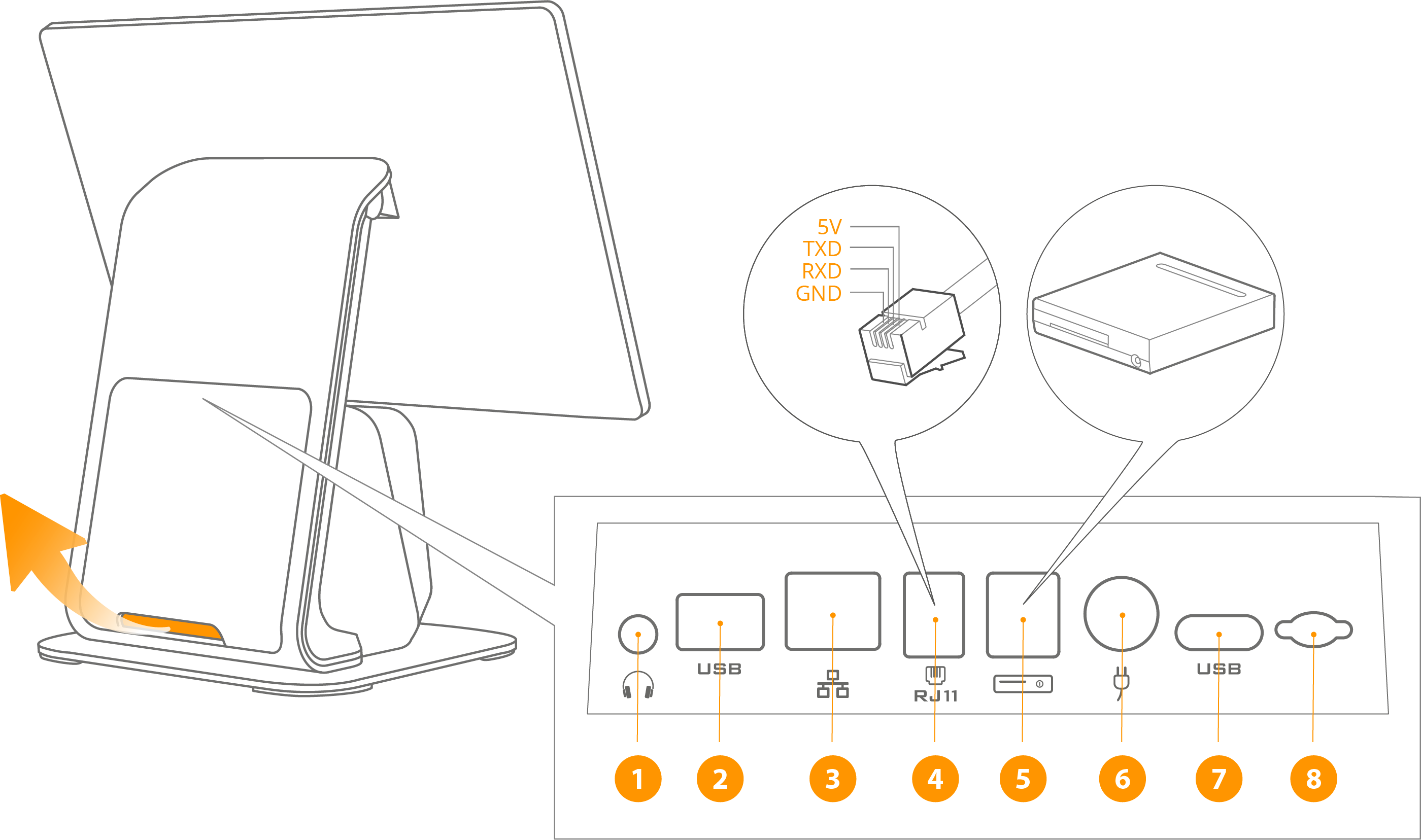
1 - Audio jack
An audio jack for connecting external speakers or headphones.
2,7 - USB port
USB 2.0 / USB 3.0 port for connecting peripheral devices.
3 - Ethernet / LAN (RJ45)
Ethernet connection for an internet connection in the local network.
4 - Serial connector (RJ11)
Connection of peripheral devices via a serial port.
5 - Cash drawer connection (RJ12)
For connecting an external cash drawer. The connection is not permanently energised, but sends current pulses with a frequency of 100ms. Different types of 9-24V cash drawers are supported.
6 - Power connection
Connection of the power supply unit for the power supply.
8 - MicroSD card connector
For expanding the internal data storage using a MicroSD card (max. 64GB).
Insert receipt roll
To insert the receipt roll, first open the printer lid in the direction of the arrow, then insert the 80x80mm thermal paper roll and finally close the printer lid.
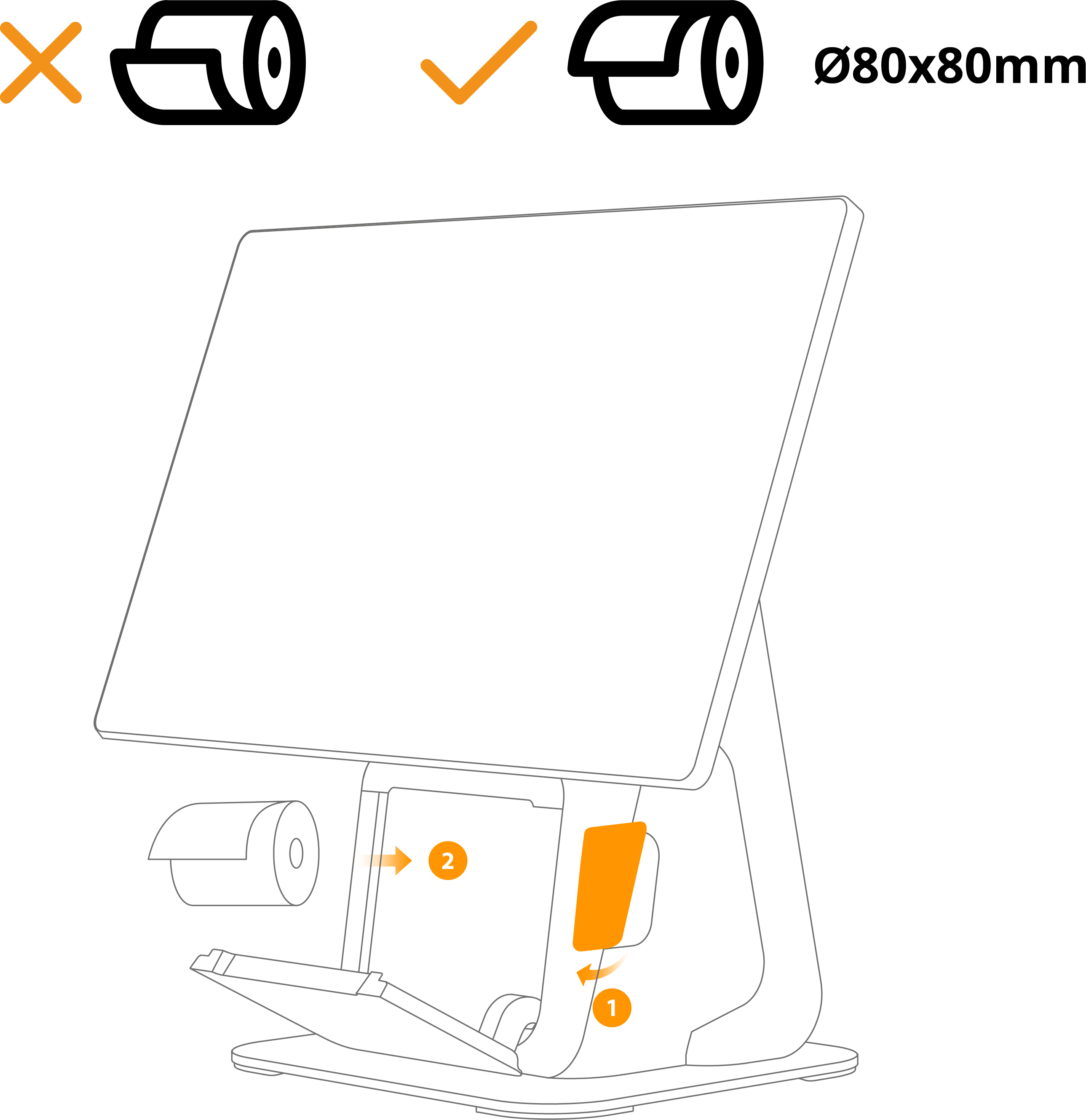
1 - Open the printer cover (pull the lever outward)
2 - Insert the receipt roll and leave a few centimeters of paper sticking out over the edge when closing the cover
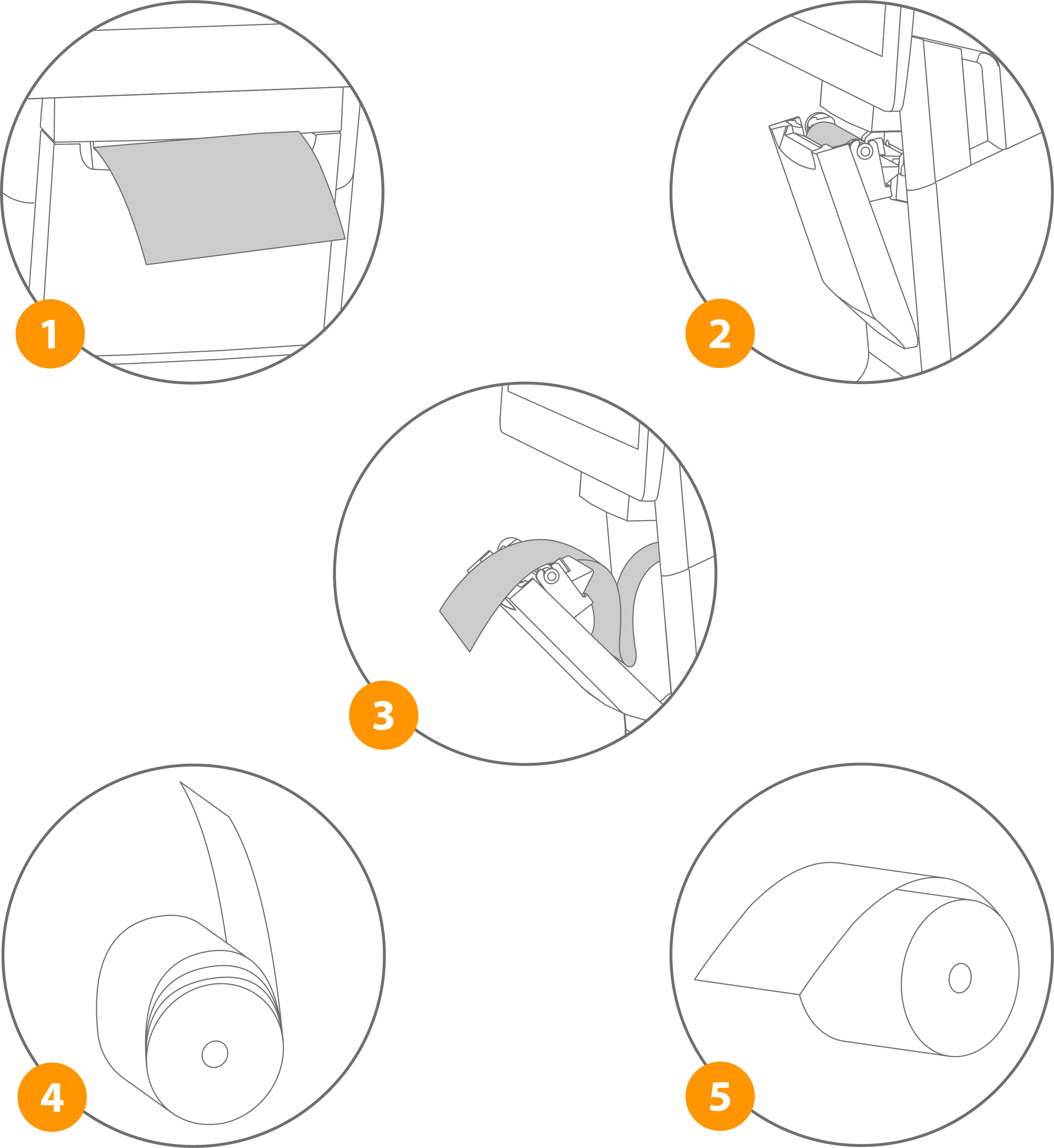
1 - The printer paper should not be inserted at an angle
2 - The paper should always protrude a few centimeters from the output tray and not slide backward
3 - Unwound paper strips should not simply be placed back in the paper tray
4 - Do not place loosely rolled paper rolls in the printer
5 - Ensure that the paper roll is inserted in the correct direction
Note
When changing the receipt roll, please ensure that the core of the last roll has been removed before inserting the new roll.