
At each cash up, all cash is removed from the register. Before starting the next day, the available change has to be entered into the register.
Cash up
How to cash up is described in the chapter Cash Up.
Deposit change
To enter the initial change balance, press the ‘Change Deposit’ button.
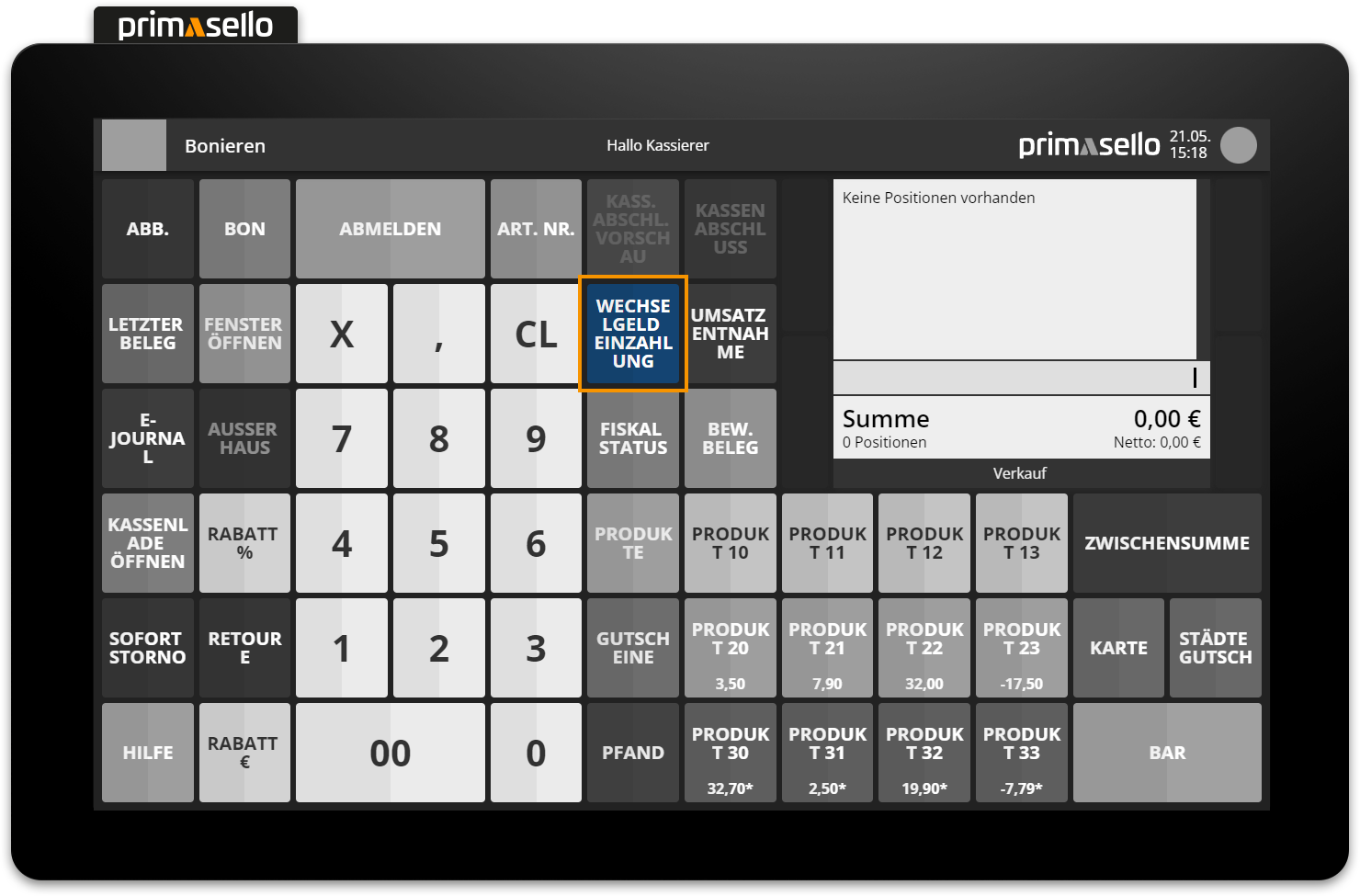
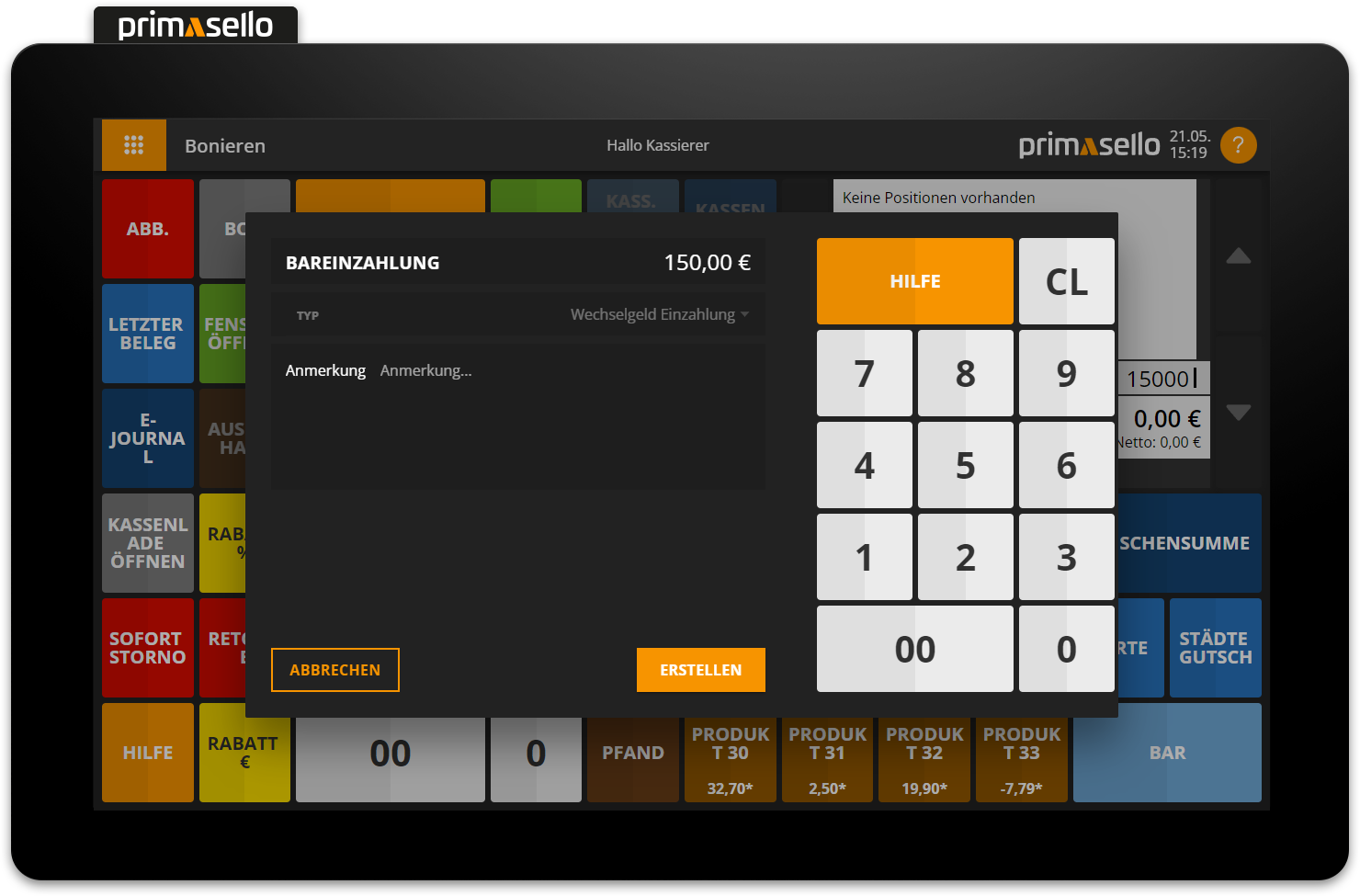
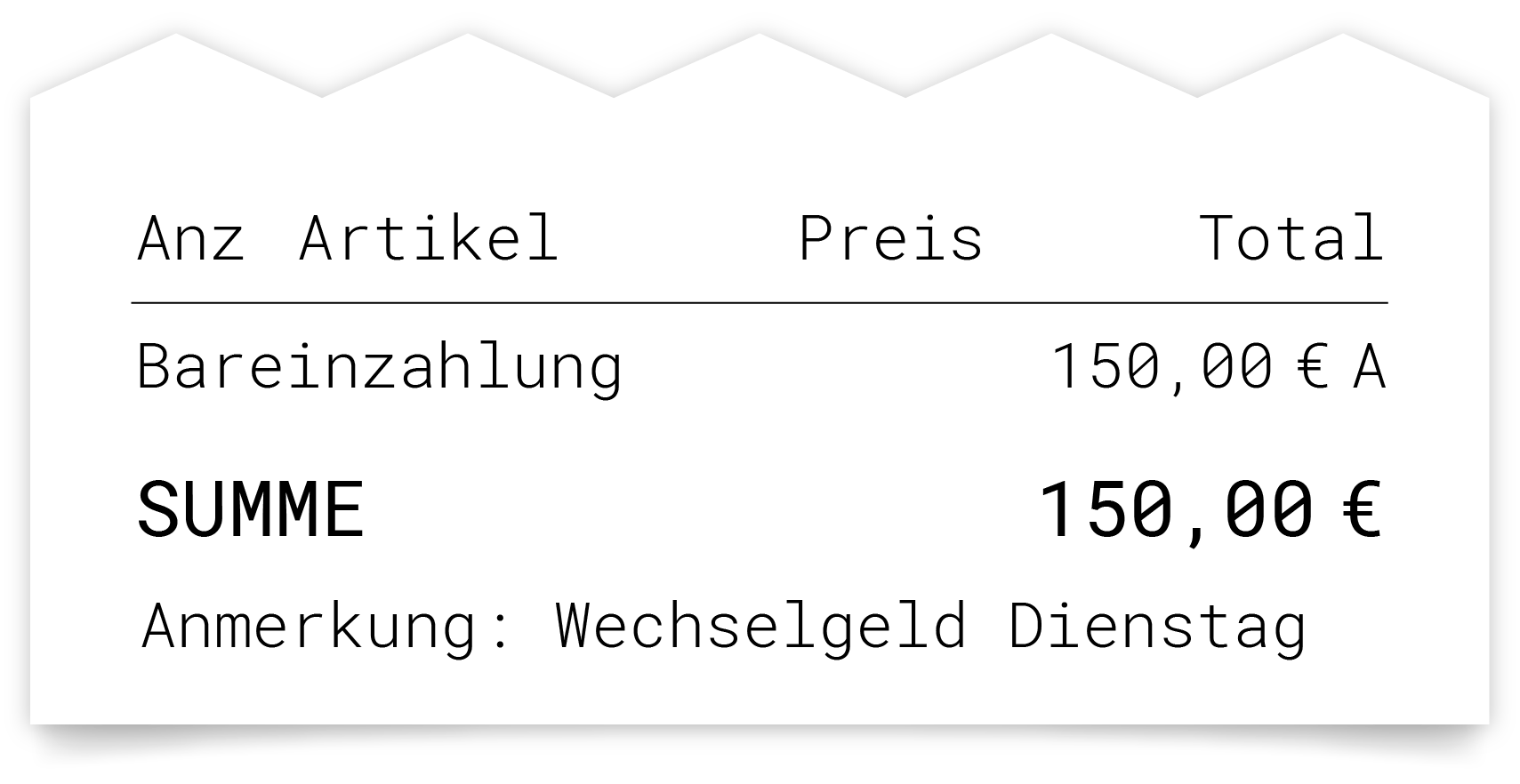
A new window opens with a prompt to enter the amount of change. The amount can be entered in cent (without a decimal point) using the numeric keyboard and confirmed with the ‘Create’ button. You can also add a note to the receipt. When you confirm the deposit by clicking on the ‘Create’ button, a receipt is automatically generated, printed and saved in the electronic journal as a ‘cash deposit’.
Alternatively, the amount for the change can first be entered using the numeric keyboard and then the ‘Change Deposit’ button can be pressed. This immediately creates and prints a receipt without opening the input window.
Example: Button input and input field



15000 |
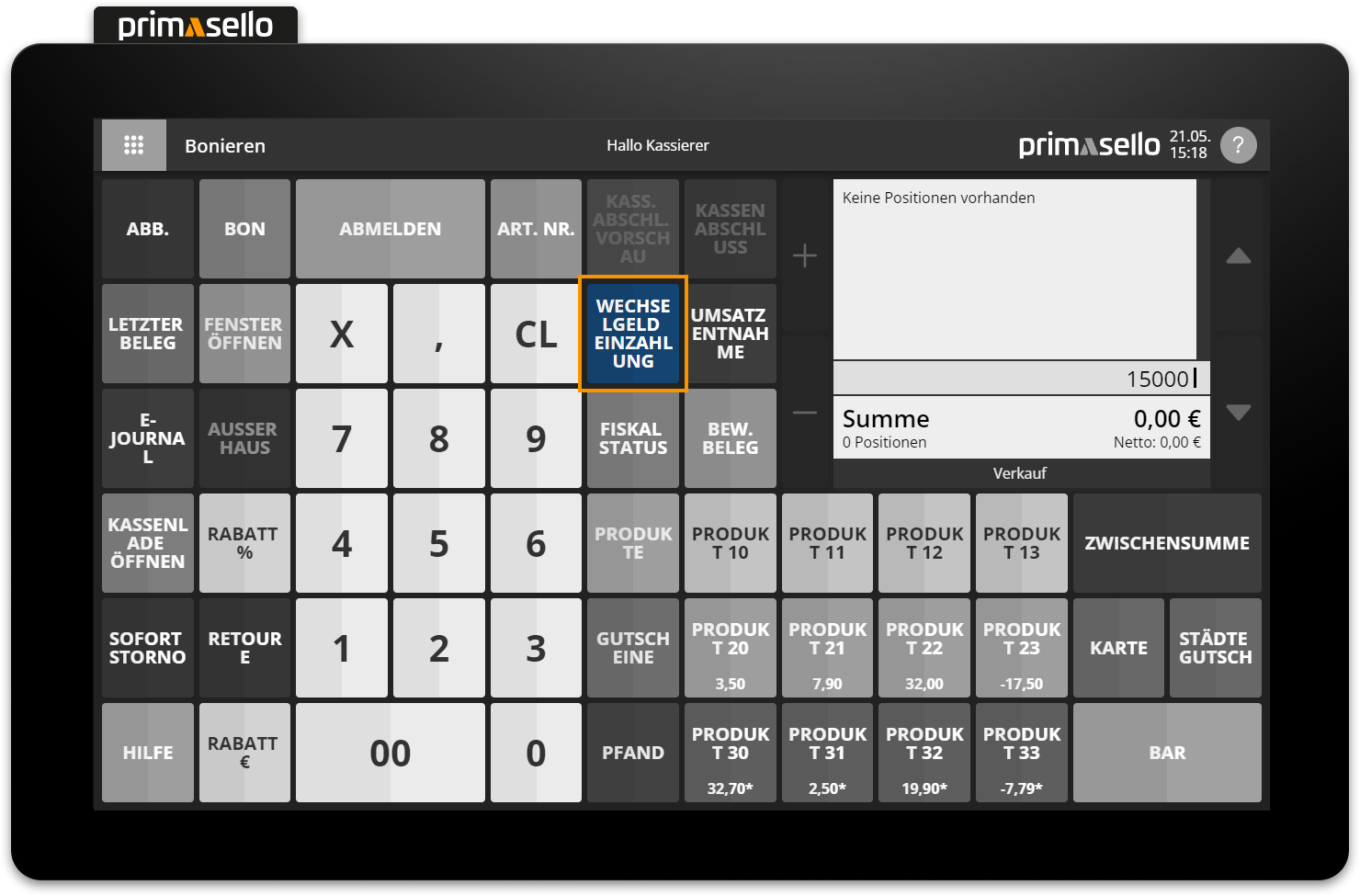
Example: Item and receipt
Correct cash deposits
Each input can be deleted from the input field using the ‘CL’ button.
Cash deposits cannot be cancelled. If a cash deposit has been incorrectly registered or the wrong amount has been entered and this needs to be corrected, a cash withdrawal has to be made to correct the cash balance.
Cash withdrawal
How to create a cash withdrawal is described in the chapter Cash Withdrawal.
Error messages
Various error messages may appear when making a cash deposit.
|
Error message |
Meaning |
Solution |
|---|---|---|
|
The shopping cart is not empty. |
A deposit cannot be made during a register process. |
First complete or cancel the register process, then repeat the input. |
|
Decimal input not allowed. |
It is not possible to enter an amount using the ‘,’ button for input. |
Enter the euro amount in cents using the numeric keyboard and run the function again. |
|
Quantity input not allowed. |
No amount can be entered for deposits. |
Check your input and clear the input field, then repeat the input. |