
This chapter describes how to create and manage options. Options can be used in the primasello cash register to add additional options to products (e.g. extra cheese on a pizza).
The options can be selected under the ‘Products’ menu item in the main menu via the ‘Options’ tab in the menu bar at the top.
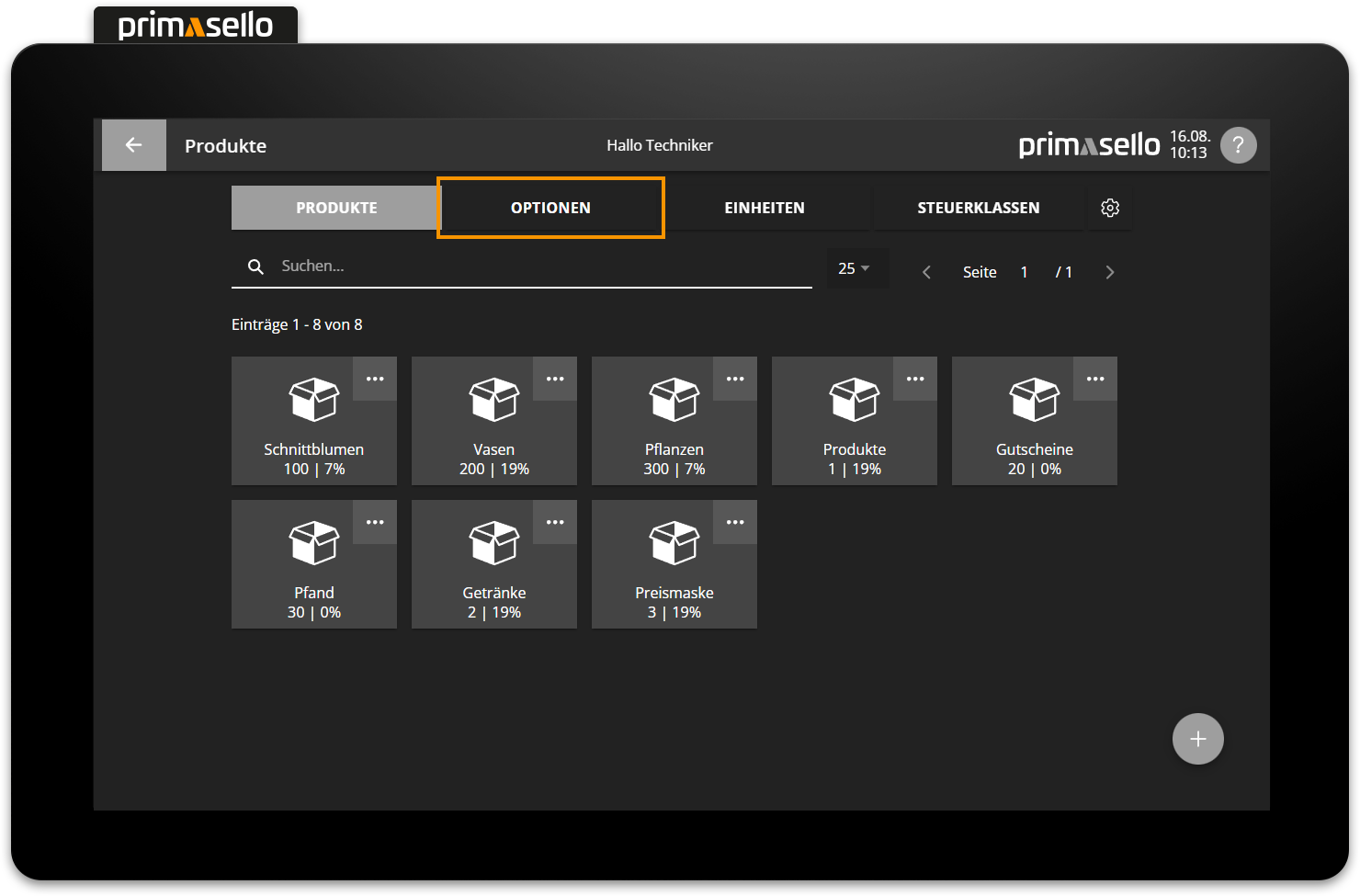
All option groups are displayed in the list. To create a new option, press the orange ‘plus’ button at the bottom right of the screen. In the following example, additional options for pizzas are created.
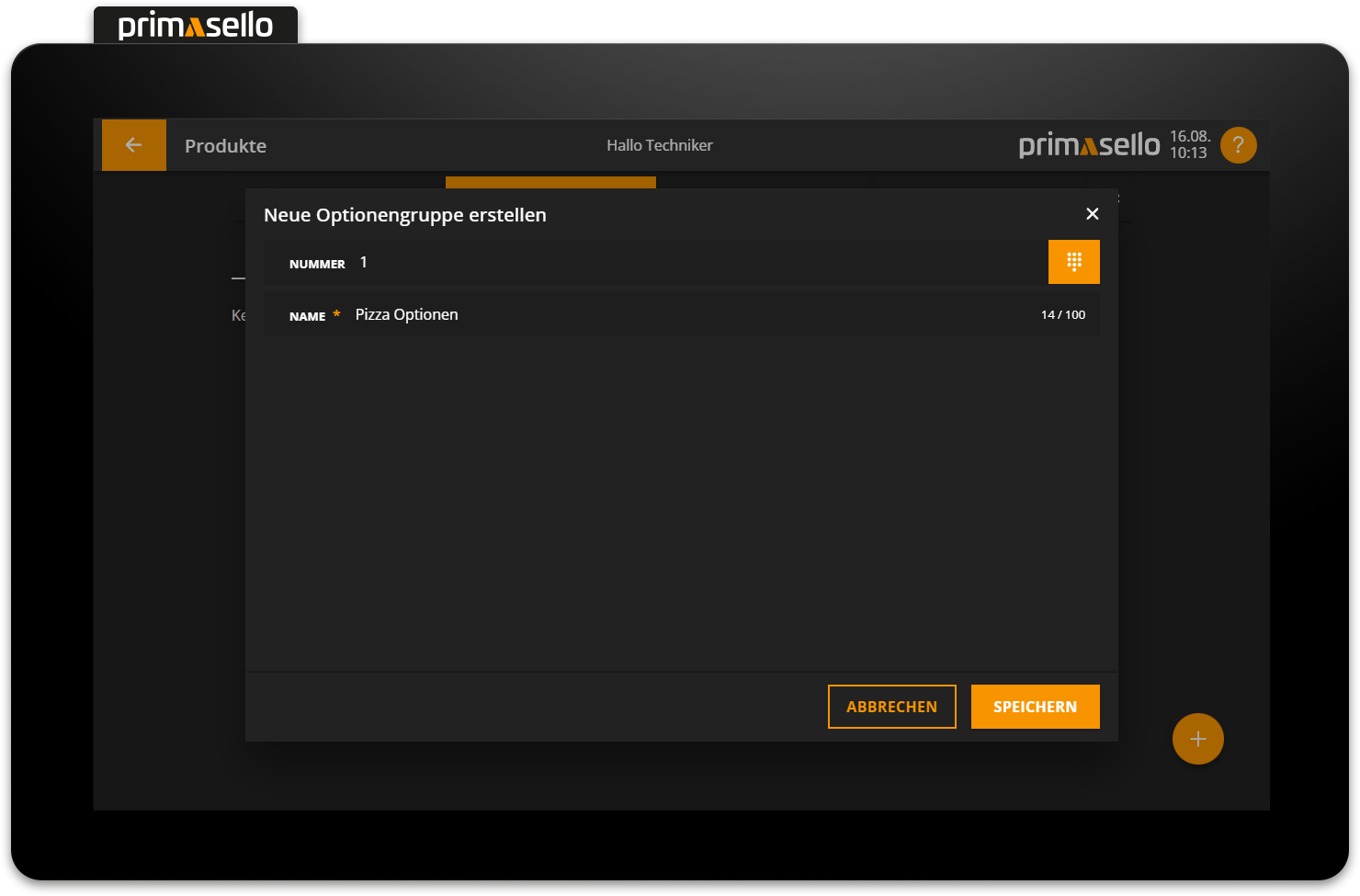
After creating the new options group, the desired options can be created by opening the desired group with a click.
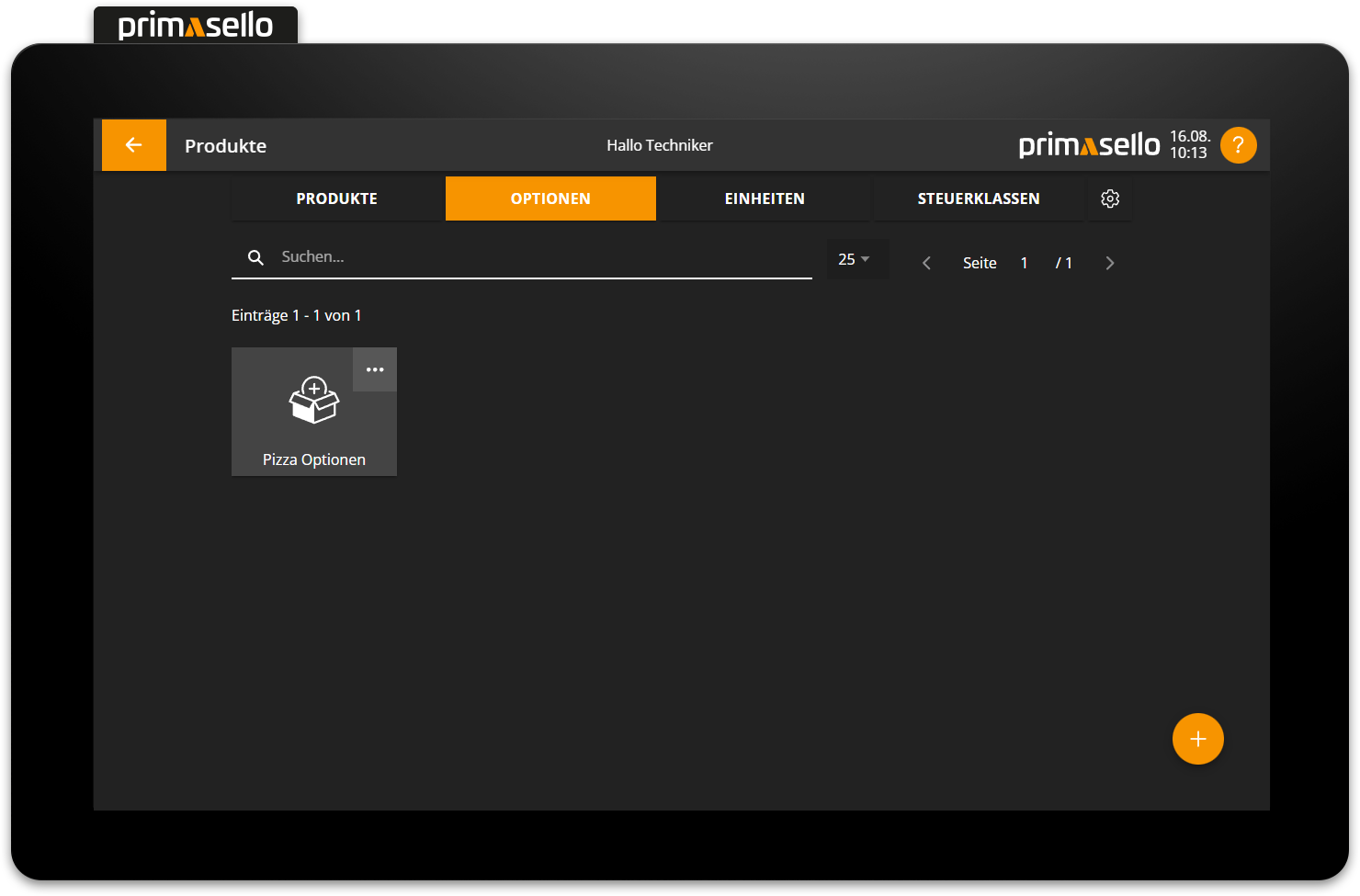
A list of all options already created is displayed in the selected group. New options can be created by clicking on the orange ‘plus’ symbol in the lower left corner.
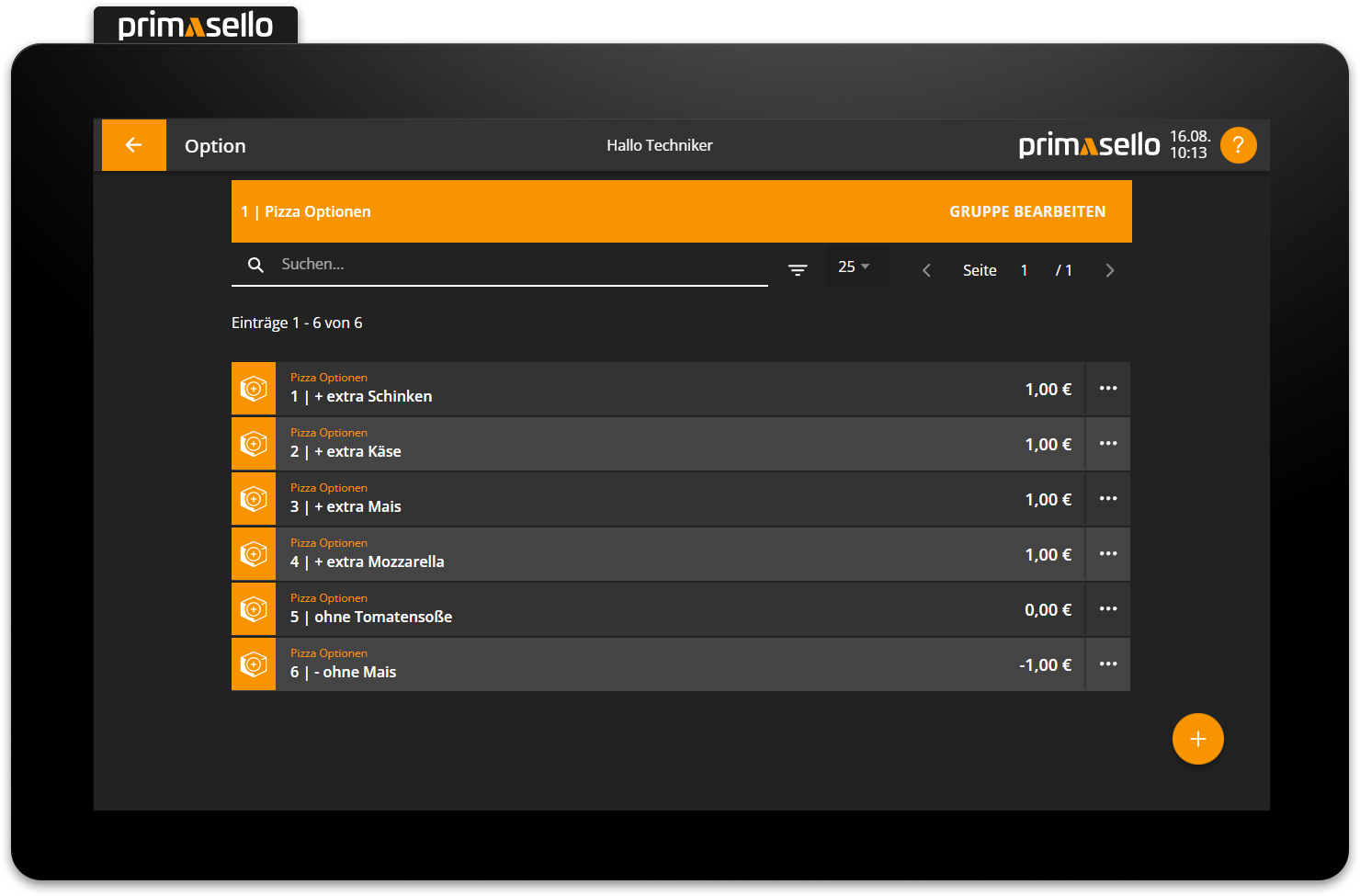
Each option has a name and a price. The price can be positive (increases the price of the product), negative (decreases the price of the product) or 0 (has no effect on the price).
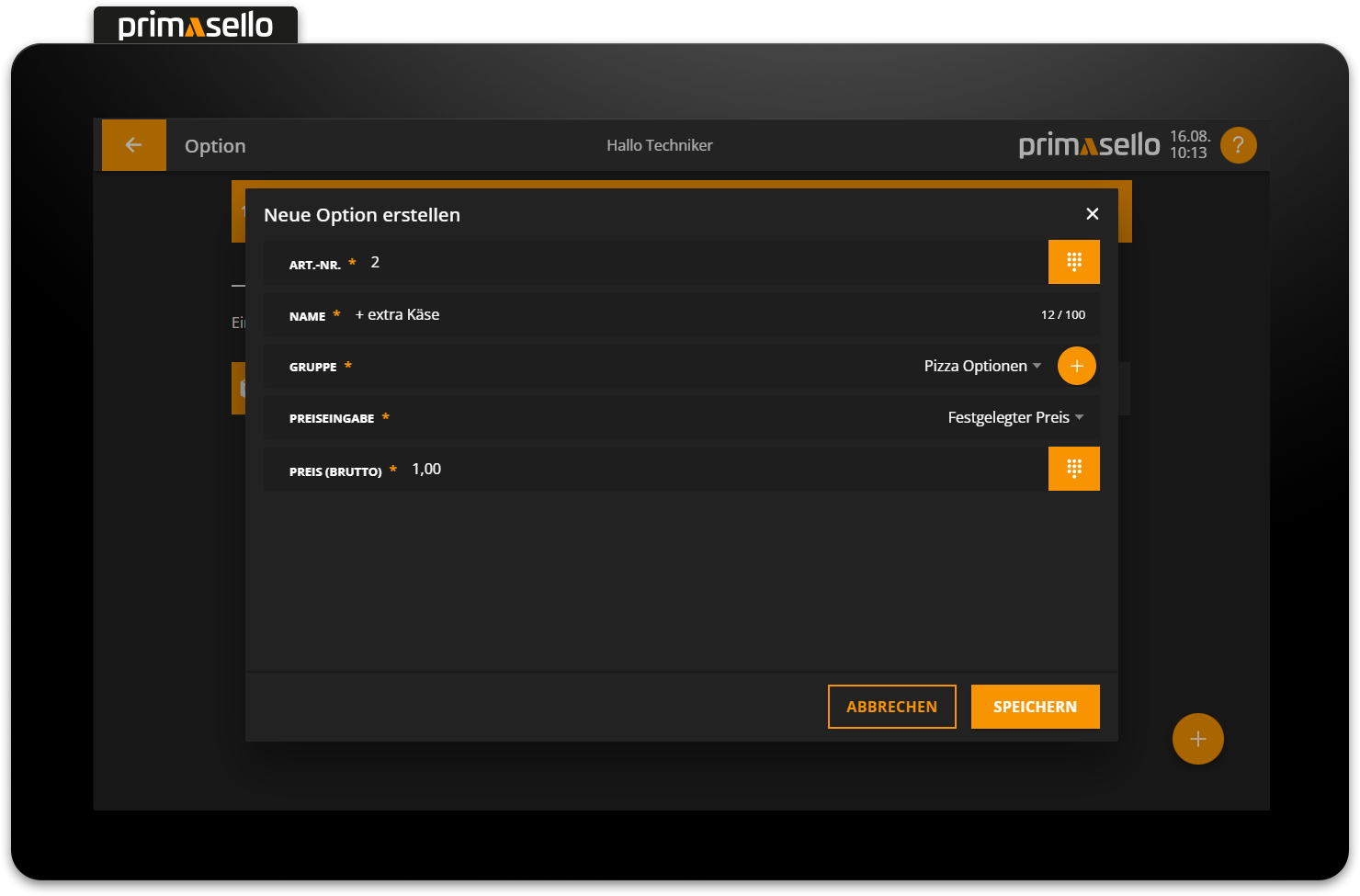
For options without a price, the price is automatically set to 0.
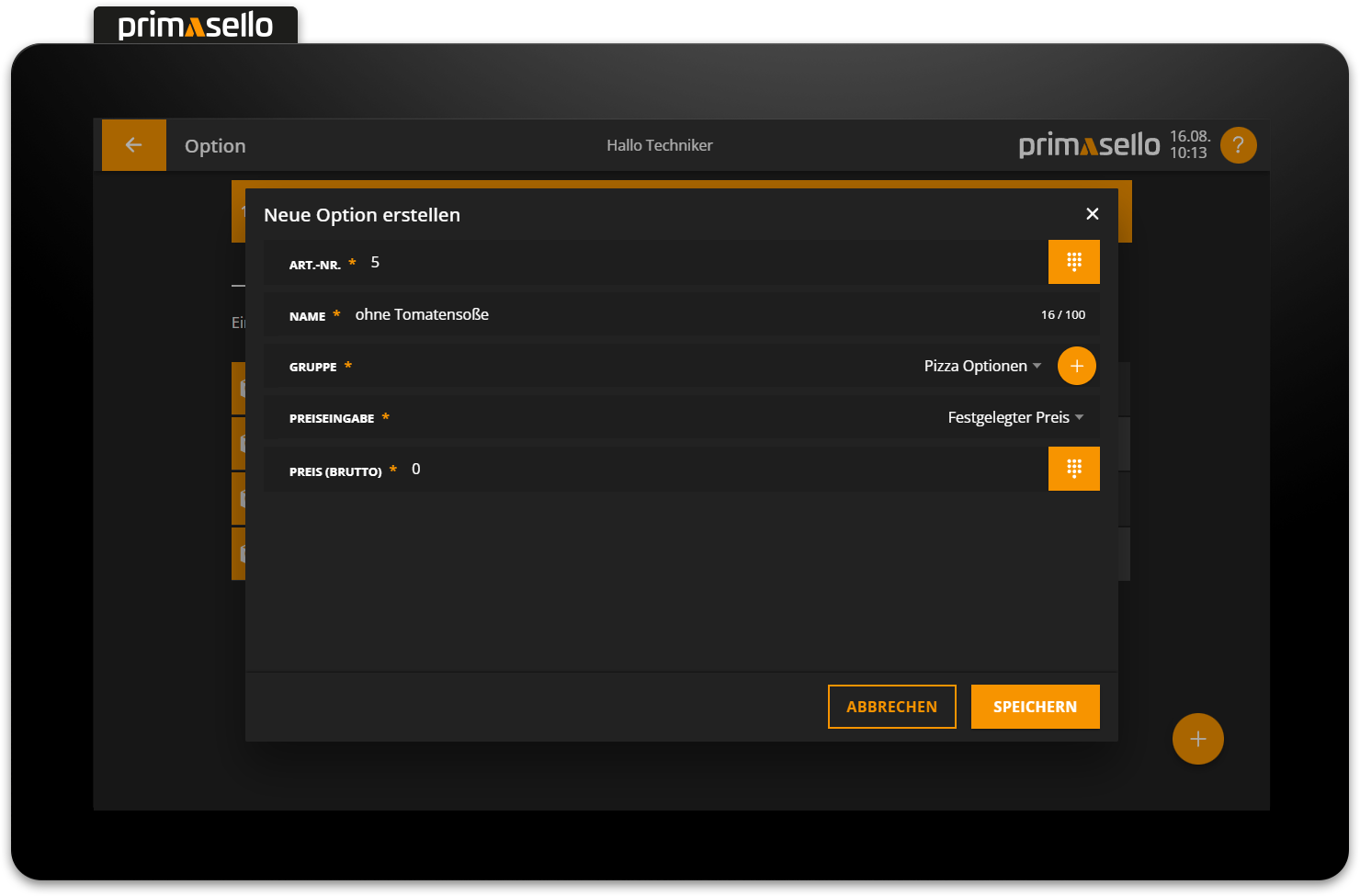
The price input can be entered in the same way as when creating products. For options with a negative price, the ‘Negative fixed price’ option should be selected.
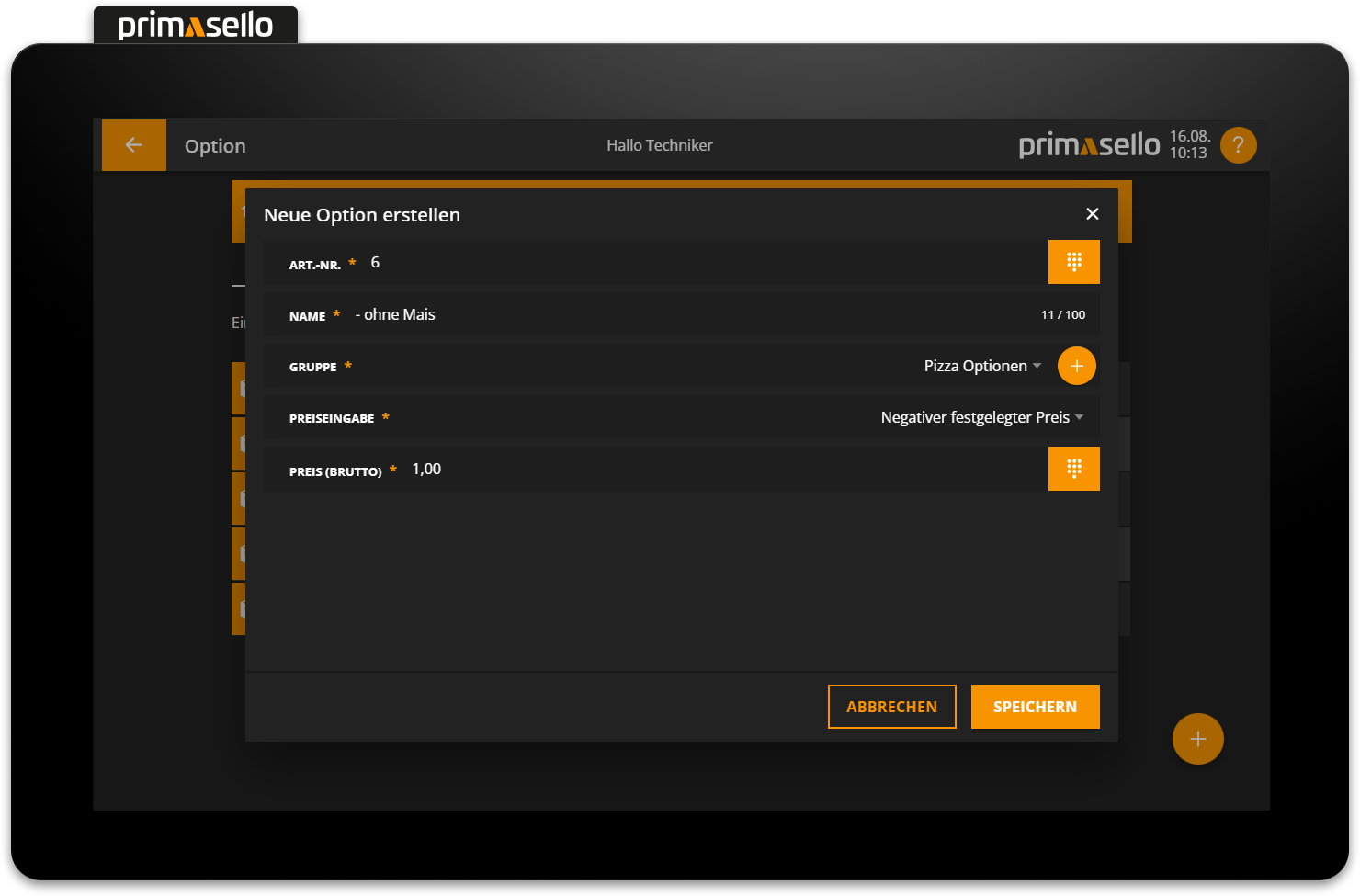
Pressing the orange ‘Save’ button in the bottom right corner creates the new option and closes the window.